
Photo to PDF for iPhone and Android
Multi-select photos, arrange the order, choose page size and margins, and export one polished PDF. Everything happens on your device — private, fast, offline.
Available on the App Store and Google Play. The feature descriptions and screenshots below refer to the iPhone app; check Google Play for Android-specific details. Features and compatibility can vary by platform.
Why people use Photo to PDF
Built for the everyday job: receipts, forms, homework, travel documents — from camera roll to shareable PDF with minimal taps.
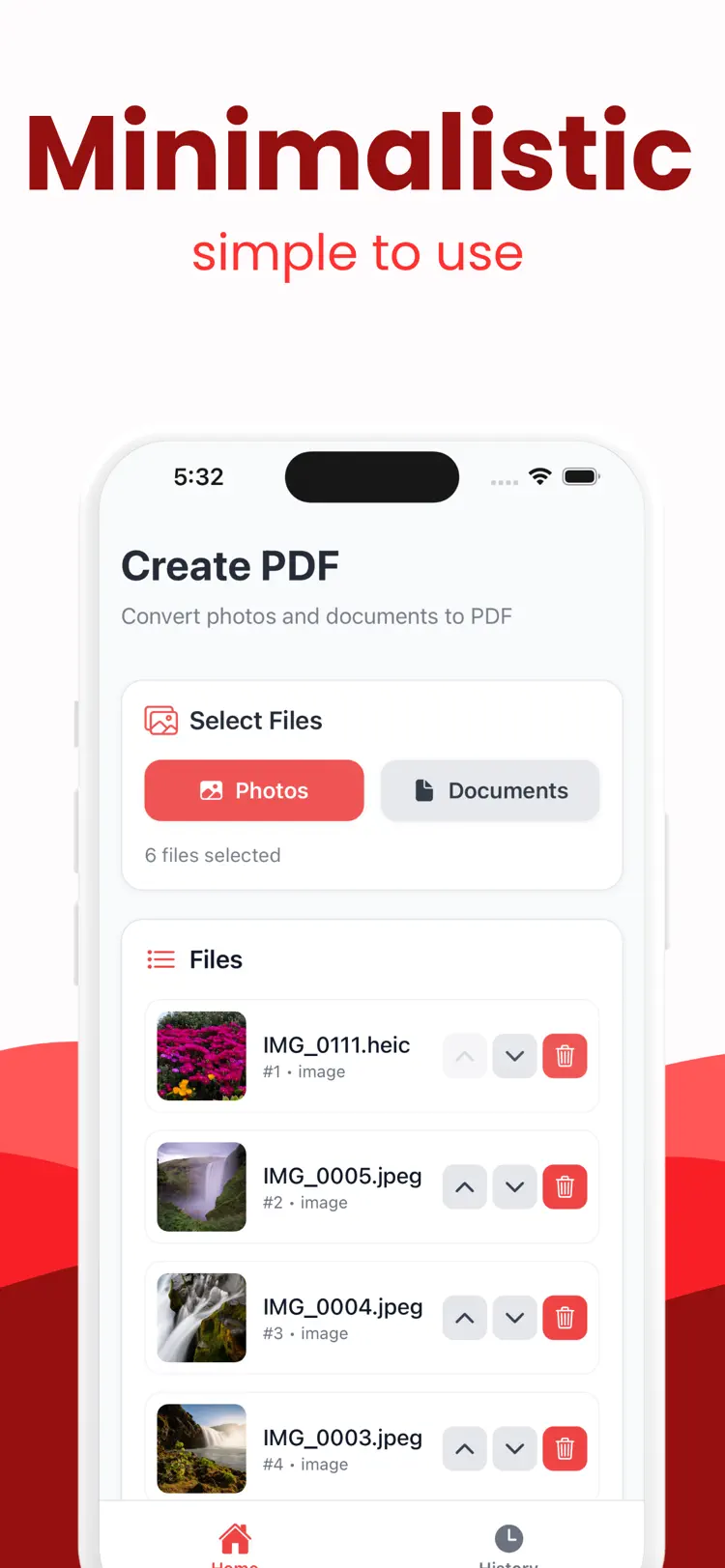
Many photos, one PDF
Multi-select from your library and combine everything into a single multi-page document.
Reorder and delete pages
Drag pages into the right order and drop the shots you don't need before exporting.
Real page sizes
A4, US Letter or Auto — so printed output and official uploads look right.
Margins & orientation
None, small or medium margins; portrait, landscape or auto orientation.
100% offline & private
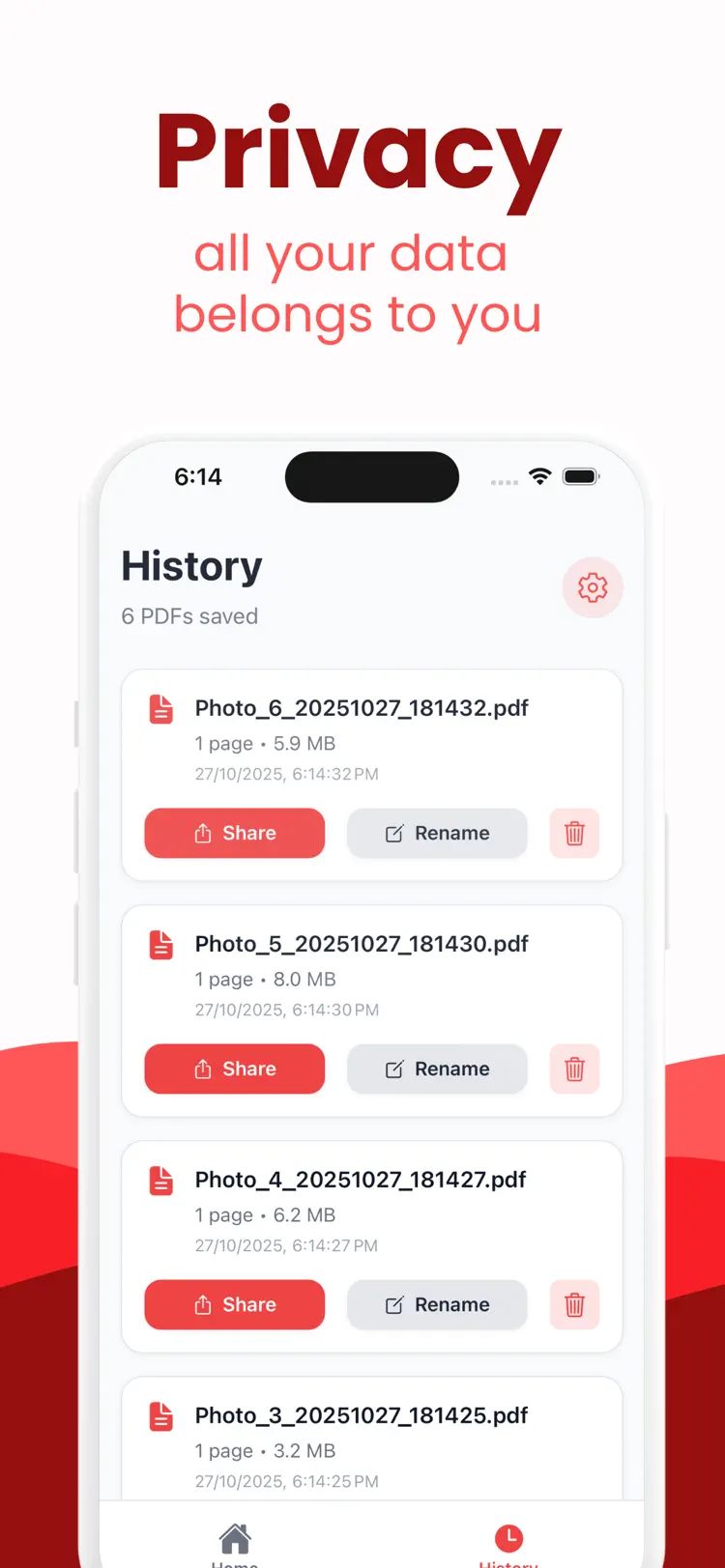
No accounts, no uploads — photos never leave your device.
History with rename
Recent PDFs stay handy: rename, reshare or delete them anytime.
How it works
Photos to PDF in three taps.
Select your photos
Pick one or many from your photo library.
Arrange and set up the page
Reorder pages, choose page size, orientation and margins.
Convert and share
Export a single PDF and save it to Files, email it, or share to any app.
Guides & how-tos
Straight answers to the questions people actually search for — including when the built-in iPhone tools are enough and when the app is the better choice.
How to Convert a Photo to PDF on iPhone (Free, 2026)
Four free ways to turn photos into a PDF on iPhone: a converter app, the Files trick, the Print trick, and Notes scanning — with when to use each.
Read the guide →JPG to PDF on iPhone: The Fastest Free Ways
Convert JPG or JPEG images to PDF on iPhone without websites or uploads: converter app, Files trick, and what to do with HEIC photos.
Read the guide →How to Combine Multiple Photos into One PDF on iPhone
Merge many photos into a single multi-page PDF on iPhone: reorder pages, set A4 or Letter, and share one clean document instead of ten attachments.
Read the guide →Photo to PDF on iPhone: Notes App vs a Dedicated Converter
The Notes scan trick makes PDFs for free — so when is a converter app actually better? An honest comparison for photos, documents and multi-page PDFs.
Read the guide →Frequently asked questions
Quick answers about features, pricing, compatibility, and privacy.
How do I convert a photo to PDF on iPhone?
Is it free?
Can I combine many photos into one PDF?
Does it convert JPG, PNG and HEIC?
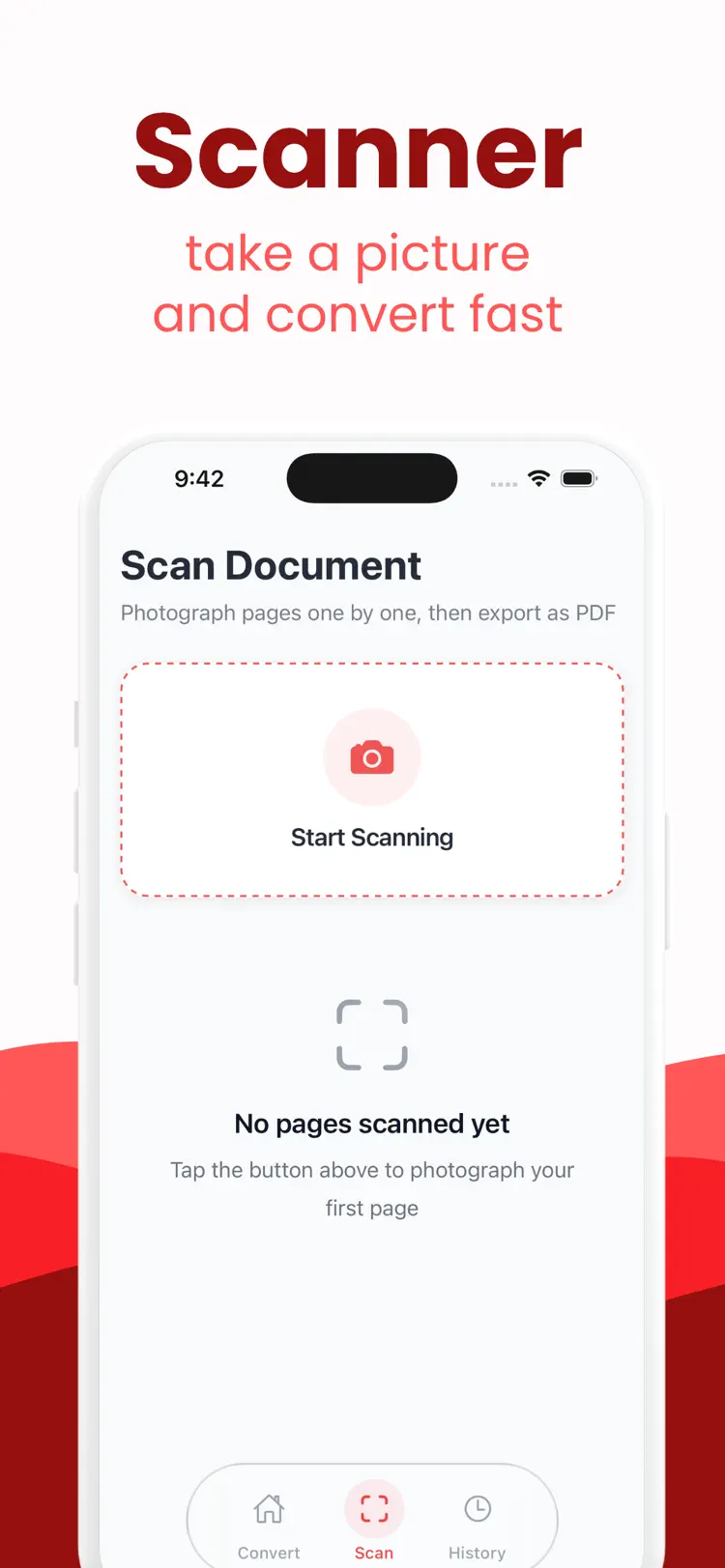
Can't I just use the Notes app?
Are my photos uploaded anywhere?
Is Photo to PDF available for both iPhone and Android?
Try Photo to PDF on iPhone or Android
Choose your platform for current features, compatibility, pricing, and privacy disclosures on the official store listing.